
Easily reset your iCloud password with our simple guide! Follow step-by-step instructions to secure your account. Troubleshoot issues and protect your data.
How to Reset Your iCloud Password:
When You Can’t Remember Your Password
We’ve all been there—trying to log into iCloud, but your brain goes blank on the password. Fear not! Resetting your iCloud password is straightforward, and we’re here to guide you through the steps. Plus, we’ll make sure you have fun along the way!
Why Resetting Your iCloud Password Matters
First things first, why is resetting your iCloud password so important? Well, your iCloud account holds a treasure trove of personal information, from photos to emails and even those clever notes you jot down. Keeping this data secure with a strong password is crucial.
Getting Started with Your iCloud Password Reset
Alright, let’s dive into the steps. The first thing you need to do is grab your device—whether it’s an iPhone, iPad, or Mac. Make sure you’re connected to the internet because we’ll be visiting a few websites.
Step 1: Open Your Device Settings
On your iPhone or iPad, start by opening the Settings app. It’s that little grey gear icon you often scroll past. If you’re on a Mac, head to the Apple menu and select System Preferences.
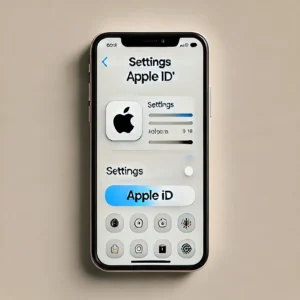
Step 2: Navigate to Your Apple ID
In Settings, tap your name at the top of the screen. On a Mac, you’ll see your Apple ID right there in System Preferences. Click or tap to proceed.
Step 3: Select ‘Password & Security’
Now, look for ‘Password & Security.’ This is where all the magic happens. Tap on it, and you’ll see several options.
Step 4: Tap ‘Change Password’
See the ‘Change Password’ option? Tap it! You might need to enter your current device passcode, so have that handy. This ensures it’s really you trying to reset your password.
Step 5: Follow the On-Screen Instructions
Apple will now guide you through the rest. Follow the on-screen instructions, which usually involve answering security questions or entering a verification code sent to your trusted device.
Step 6: Create a New Password
Here’s where you get creative! Create a new password that’s strong and unique. Use a mix of letters, numbers, and symbols to make it tough to crack. Apple will let you know if your new password meets their security standards.
Step 7: Confirm Your New Password
After entering your new password, you’ll need to type it again to confirm. This double-check ensures you didn’t make a typo the first time.
Step 8: Save Your Changes
Once you’ve confirmed your new password, tap ‘Save’ or ‘Done.’ Your iCloud password is now reset! Take a deep breath and relax—you’ve successfully secured your account.
Troubleshooting: What to Do if Things Go Wrong
Sometimes, things don’t go as smoothly as planned. If you run into any issues, don’t panic. Here are some common problems and their solutions.
Problem: Forgot Your Apple ID Email
If you’ve forgotten your Apple ID email, head to the Apple ID account page and try using the ‘Forgot Apple ID’ option. Enter any email addresses you might have used.
Problem: No Access to Trusted Device
Can’t access your trusted device for the verification code? No worries. Apple provides alternative verification methods, such as sending the code to a trusted phone number or email address.
Protecting Your New iCloud Password
Now that you’ve reset your iCloud password, let’s talk about keeping it secure. Here are some tips to protect your new password.
Tip 1: Use a Password Manager
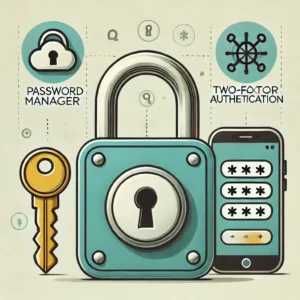
A password manager can store all your passwords securely. You’ll only need to remember one master password.
Tip 2: Enable Two-Factor Authentication
Two-factor authentication (2FA) adds an extra layer of security. Even if someone gets your password, they’ll need a second form of verification to access your account.
Tip 3: Regularly Update Your Password
Make it a habit to change your password every few months. Regular updates can help prevent unauthorized access.
Conclusion: You’re All Set!
Congrats! You’ve successfully reset your iCloud password and learned how to keep it secure. With these tips, your iCloud account is safer than ever. If you enjoyed this guide, check out our other tech tips and tricks to keep your digital life running smoothly. Happy surfing!